A digital whiteboard? A carpenter’s level? An image generator? These are just some of the built-in apps you may be hauling around on your phone or tablet. Apple includes these apps as bonus features, but if you never use them, would you rather have the storage space back?
Preinstalled apps vary by the model, hardware maker, wireless carrier and the system software involved. So does your ability to remove them. But what you can’t delete, you can hide.
Here’s a quick guide to streamlining your app collection — including those you personally installed, but never use.
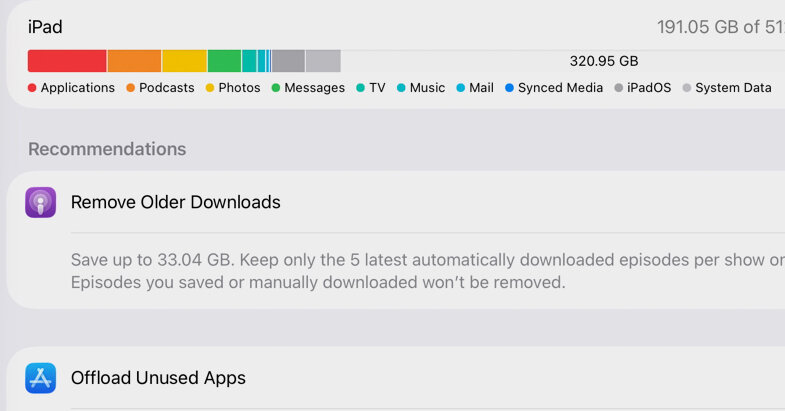
A good starting point (after backing up your device) is to take stock of all your installed apps. Your device includes tools for identifying space-hogging or unused apps to offload.
With iOS, go to the iPhone Storage tool in the General menu of the settings. The iPad has a similar tool. Apple’s website has a lengthy list of preinstalled apps that can be deleted.
With Android settings, tap Storage to see the space apps are using (often with a shortcut to the Files app for quick space recovery), or Apps to see the list. On most Android devices, including Samsung Galaxy gear, you can see your apps by going to the Google Play Store, tapping your profile icon and selecting Manage Apps & Device and then Manage.
Delete Them
When you scroll to the bottom of the iPhone Storage menu, you can start deleting unwanted apps by swiping or tapping an app’s name. Then choose Offload (which deletes the app but saves your personal data from it) or Delete (which removes everything). You can also delete apps from the iPhone’s home screen or App Library.
From the home screen, press down on an icon until the menu pops up with the option to delete the app. Alternatively, swipe to the last screen to get to your App Library, tap the search box at the top to see an alphabetical list and then press down on an icon until a menu with the Delete App option appears.
Android automatically pauses unused apps to save system resources. Most preinstalled apps cannot be removed, but you may see the option to Disable or Archive an app.
Disabling an app stops it from running in the background and using system resources; it also prevents updates and hides its icon. The Archive option removes the app but keeps its icon and personal data on your device. Just reinstall the app to make it work again.
To uninstall the apps you can remove, swipe up to open the Apps Drawer full of icons and drag one to the top of the screen to the Uninstall button.
Alternatively, press an icon, select the App Info option from the pop-up menu and tap the Uninstall button there. Or open the Settings icon and tap Apps and then See All Apps. Tap an app you want to remove to open its info page, then tap the Uninstall button.
Samsung’s Galaxy devices have similar steps for removing apps. You can also press down on an icon from the Apps screen to get a pop-up menu with Uninstall and Disable options.
Hide Them
Although it won’t free up space, you can avoid seeing unwanted icons by pressing an icon on the home screen and selecting the Remove option on the pop-up menu — or by not adding them to the home screen in the first place. Just leave them parked in the App Library or App Drawer.
Organizing apps in home screen folders is another option offered by the iOS, Android or Samsung Galaxy software. To start a folder, press and drag one icon on top of another. This creates the folder, and then you can drag other apps into it. Tap the folder to name or rename it.
To remove a folder, drag out every app icon until it is empty.
Apple, Google and Samsung also include the option to tuck apps in hidden folders for security reasons, although this feature is usually just for third-party apps you installed yourself.
Restore Them
If you change your mind, you can reinstall your deleted apps by going to your app store and downloading them again.
Android apps that are hidden but not deleted can be restored or enabled again from the app’s info page.
Conversely, if you would like to see what other free manufacturer apps are available for your device, search the store for apps developed by Apple, Google or Samsung.